
We want you to be aware of the pricing options available to you. Either way, the shopper sees the same total advertised price.
ADVERTISED PRICE AS ONE TOTAL
$40,200
The fee is in the price, but not broken out. Make sure all dealer fees are included.
ADVERTISED PRICE ITEMIZED
- Price: $40,000
- Dealer Fee: $200
- Total Advertised Price: $40,200
✓ Shown on the detailed listing
Website advertised pricing options
Include fees in your advertised Internet Price
Complete in: DMS and/or Website Company Settings
Enter a price that already includes your fees as the Internet Price, and that price goes to your website. Because the fees are built into that number, you back the fee amount out when you enter the selling price at the time of sale.
OR
Add your Dealer Fee in Company Settings
Complete in: Website Company Settings
Enter your Dealer Fee once in your website Company Settings. Your Internet Price is shown on your website with your fee added on top — the Internet Price stays as the base number.
More fee fields
New
Complete in: Website Company Settings
Add up to two more fees beyond your Dealer Fee, so you can further break out any dealer fees that need to be disclosed.
Itemized breakdown
New
Complete in: Website Company Settings
Show the itemized fee breakdown on the detailed inventory listing, so shoppers can see each fee that makes up the advertised price.
Where to make changes
Log into the admin console of your website, then:
- Go to Company Settings › Inventory.
- Add your fees (Dealer Fee + up to two more).
- Check "Show fee breakdown on website" to itemize them for shoppers.
Your advertised price starts with your Internet Price
Your "Internet Price" is the starting point for your advertised price. Depending on your products, this may start in the DMS Inventory or in the Website Inventory.
Add your fees in website Company Settings
Under Company Settings › Inventory on your website, list your Dealer Fee as always — and now add up to two more fees for any additional fees you need to disclose. Each fee is added to the Internet Price.
Example: on a $40,000 listing, a $200 Dealer Fee shows a total advertised price of $40,200.
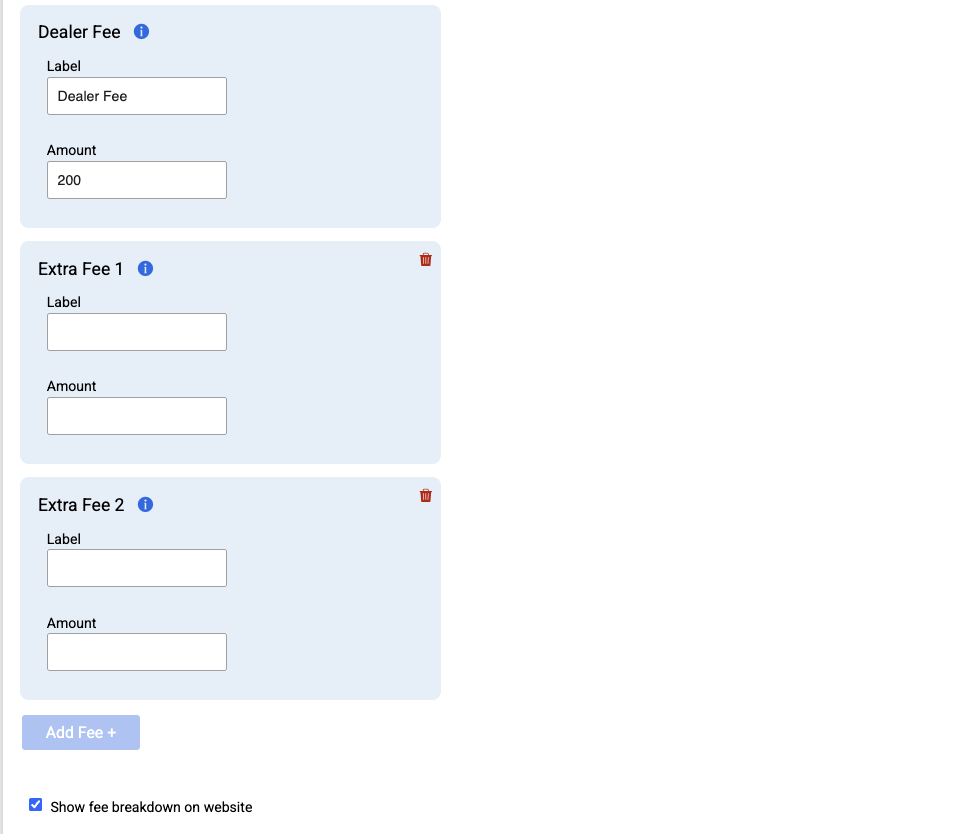
Company Settings › Inventory: Dealer Fee, up to two extra fees, and the breakdown checkbox.
Show the breakdown on your listings
Check "Show fee breakdown on website" and the itemized breakdown appears on the detailed vehicle page. Smaller card-style views still show the total advertised price. Either way, the price your shopper sees is the total advertised price — the breakdown is there for clarity.
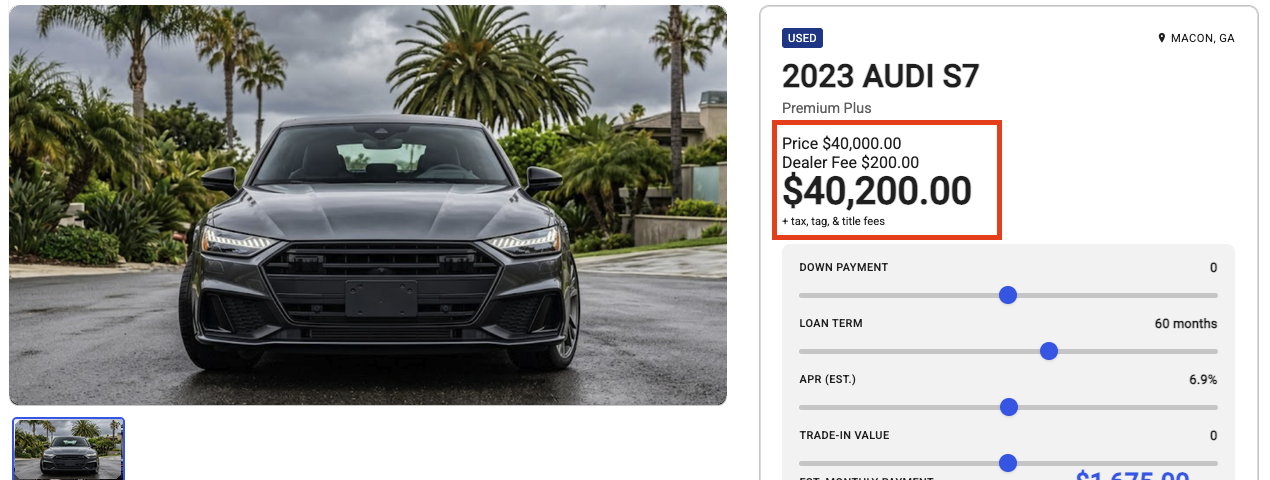
The itemized breakdown as shoppers see it on the detailed vehicle page.
STEP 4 · ONE OF THE MOST IMPORTANT
Verify the advertised price is the total price the customer will pay for the vehicle
Aside from required government charges like taxes. Don't stop at the settings — confirm what your shoppers actually see.
Verify prices on your website
After you complete the setup, refresh your website to confirm pricing is shown the way you want. This may need a hard refresh — Control + Shift + R on Windows, or Command + Shift + R on a Mac.
About third-party feeds
These fee settings don't change what's sent in third-party feeds. Each third party receives data by its own rules: one that normally gets just the price keeps getting the price, while one that gets the price plus fees will get the full total — but only once you've added the fees here. Many third parties also handle fees on their end, so coordinate with them.
It is imperative that you visit your website and the third-party websites to make sure the correct price and fees are being displayed.
Questions or need a hand?
Our web support team can help you set up your fees and check your listings.
Web support: (800) 701-8082 websupport@waynereaves.com
These tools help you display more transparency in your pricing to consumers. They do not replace your own review of your advertising and pricing practices. If you have questions about your obligations, check with your compliance or legal counsel.